Fridge QR

Every helper asks what needs doing today. Put the answer on the fridge.

Make today's list in FamiFly, print one QR code, and whoever's on duty scans it and checks off the jobs.

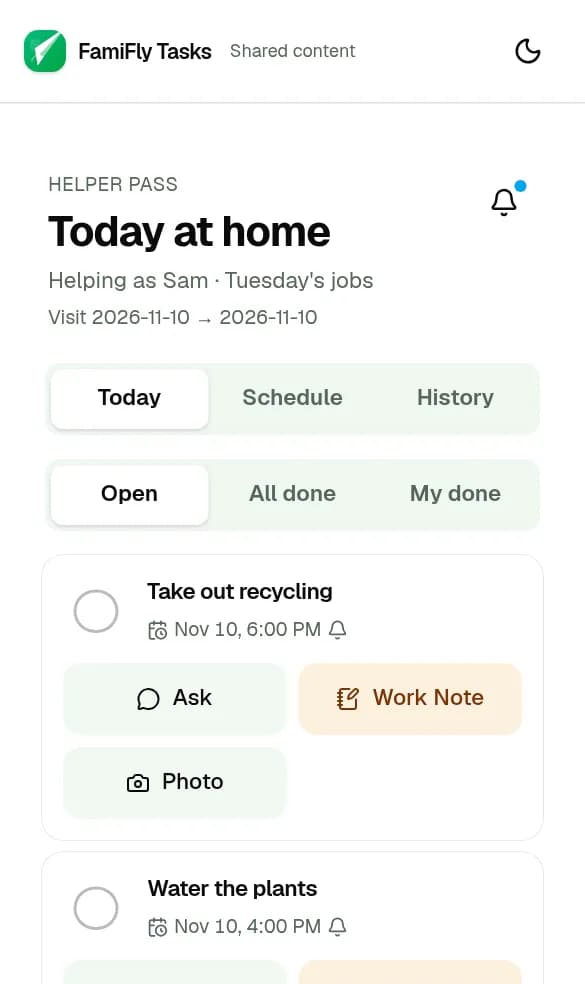
Helper Pass Today on a phone — today's jobs with check-off actions
  • One code for every helper
  • No app or account to scan it
  • You know the day is handled

Free to start · Delete your data anytime

How it works

Make today's list

Add the jobs whoever is helping needs for today.

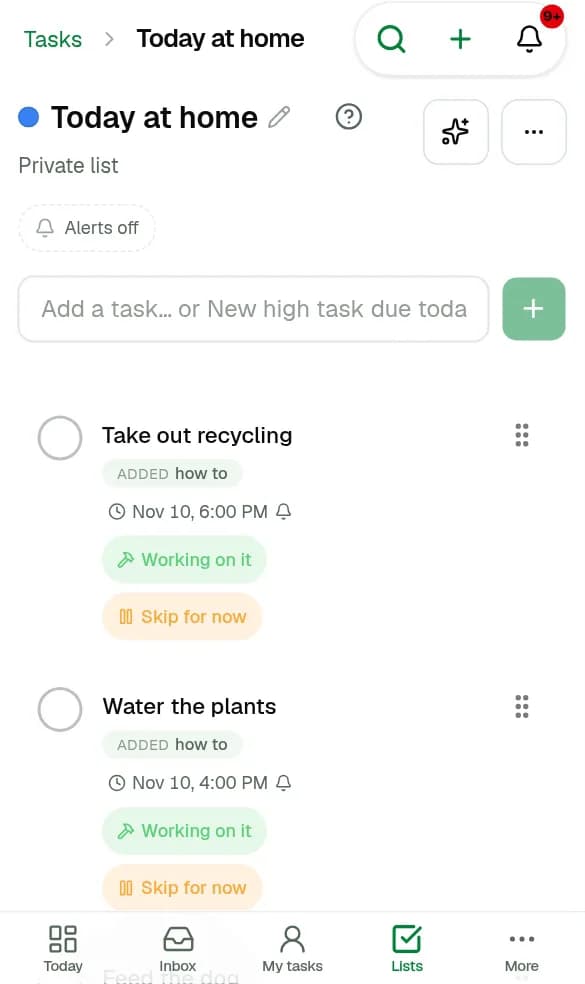
Owner list with today's household jobs ready to share

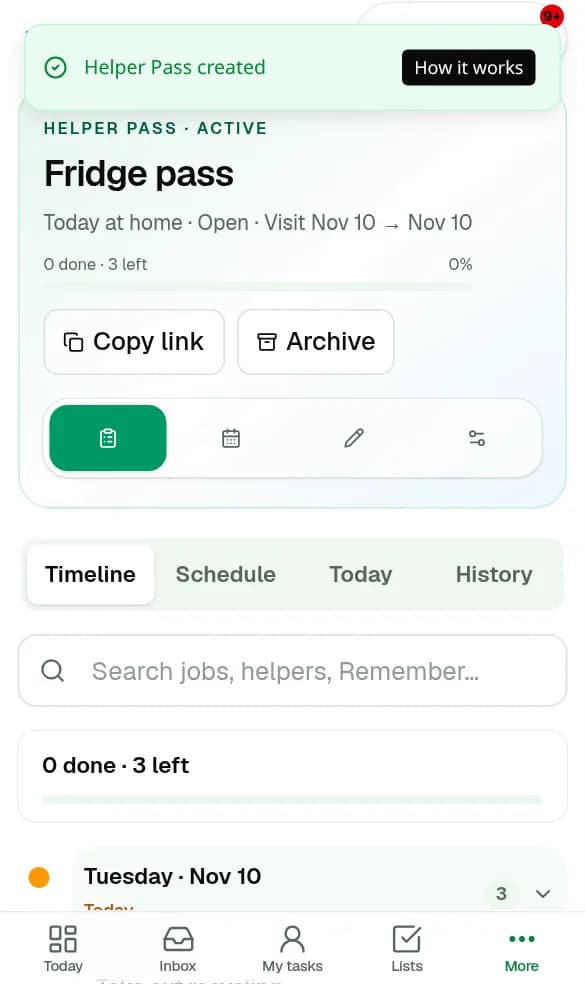
Create an open Helper Pass and print the QR code

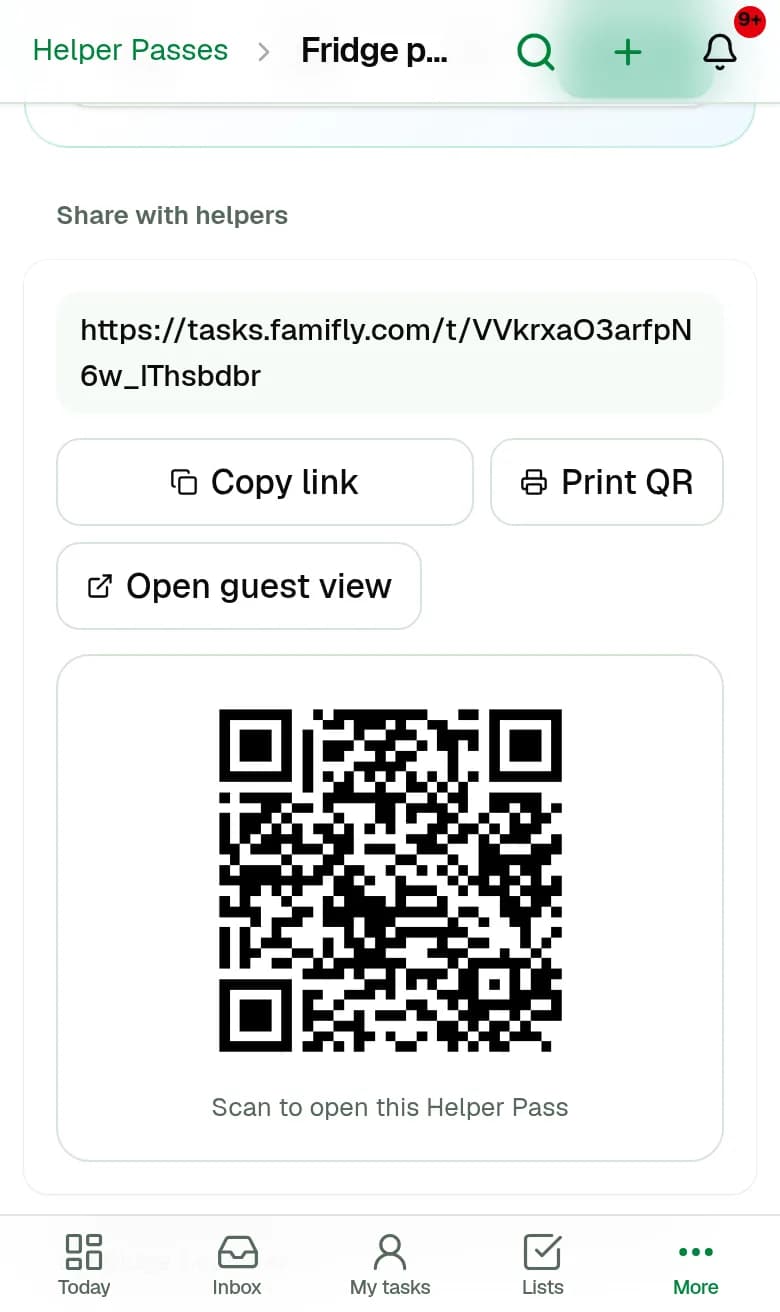
From Helper Pass settings, copy the link or open the print view for your fridge.

Open Helper Pass with visit window and sharing options
Helper Pass print view with QR code and link in FamiFly settings

Sample code

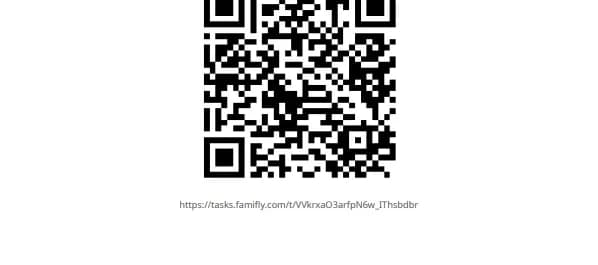
Printable Helper Pass QR sheet for the fridge

Sample code

Helpers scan and check things off

They open the pass in the browser, optionally add their name on open passes, and complete today's jobs.

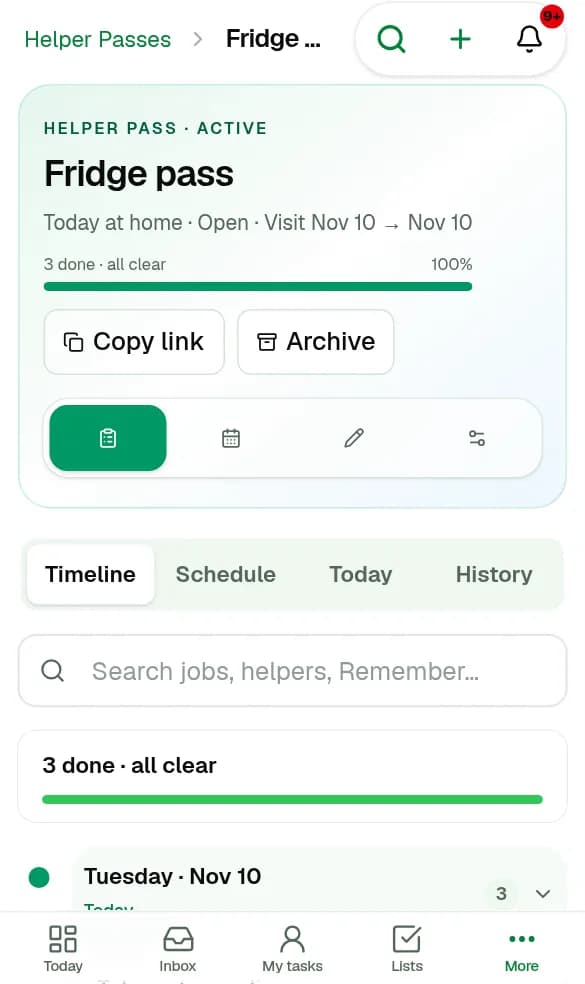
Owner view showing helper progress — jobs checked off on the pass

For people who live with you, invite them to your space instead.

Who it's for

  • Sitters
  • Walkers
  • Cleaners
  • Grandparents
  • Anyone covering a shift

What your helper sees

Today's open jobs on the pass — not your whole task history.
No FamiFly app or account for them.
Can check jobs off and optionally attach a photo when finishing.
Helper Pass Today on a phone — today's jobs with check-off actions

Built to earn trust

Free to start, yours to leave

Export or delete your account and data from Settings → Trust & balance, anytime.

Private to your space

You choose what to share. Read our Privacy Policy.

FamiFly Tasks

For households, small teams, and the helpers who pitch in.

Quick answers

What does it cost?
Free to start. Free spaces can run a Helper Pass trial (14 days, one pass). The Family Helper plan includes the full Helper Pass suite. See the Pricing page for current rates.
What can my helper see?
Only what's on that Helper Pass — typically today's open jobs (and Schedule inside a visit window). They can complete jobs and attach an optional photo. Guides and Scenarios appear only if you enabled them on the pass.
Can I turn the code off?
Yes. Tap Revoke link on the pass and the code stops working right away.
Ready to hand off today's jobs?

Free to start · Delete your data anytime